A digital form Comparison report simplifies information review by highlighting changes at every stage of a form’s lifecycle, from creation to completion. It provides a clear, efficient view of data differences across fields, identifying:
- Added Information
- Updated information
- Removed information
This helps professionals confirm accuracy, spot inconsistencies quickly, and maintain a reliable trail of all updates.
Note: Form comparisons are only supported for versions where status changes have been tracked from 10/02/2026 onwards, which is the date the comparison feature was enabled. Earlier versions cannot be compared as historical data was not captured in a comparable format.
To generate a Comparison Report:
- From the left-side navigation menu, select Digital Forms and then select the relevant form (e.g. 'Fact Find' > 'Detailed Financial Profile').
- Navigate to the relevant status tab (e.g. 'Complete'), and from the 'Action' tab for the client, select the 'Comparison' icon or you can select the form and click 'Comparison Report":
Alternatively, if you click on the Client name, you can also access this via the Form Details Screen:
- A pop-up will appear asking you to select Status A and Status B. Status A must be an earlier version of the form, such as Open – Not Sent. Status B must be the most up‑to‑date version, such as Complete.
Set the statuses and select 'Generate tracking report'
You'll then be prompted with a Generate tracking Report.
4. Key features of the report include:
- data changes are colour‑coded according to the on‑screen summary (1)
- A tooltip displays the total number of recorded changes (2)
- A toggle allows you to show only fields that have changed; when off, all data is visible (3)
- Selecting a field expands a drop‑down showing a side‑by‑side summary of data from both form versions (4)
- The left column displays data from Status A (earlier version)
- The right column displays data from Status B (later version)
- The report can be downloaded in .csv or .pdf format(5)
Changes In Status
As you navigate through the field drop-downs, you'll be prompted with any changes made will be colour coded as follows:
Fields highlighted in yellow indicate changes
Fields highlighted in green indicate additions
Fields highlighted in red indicate deletions
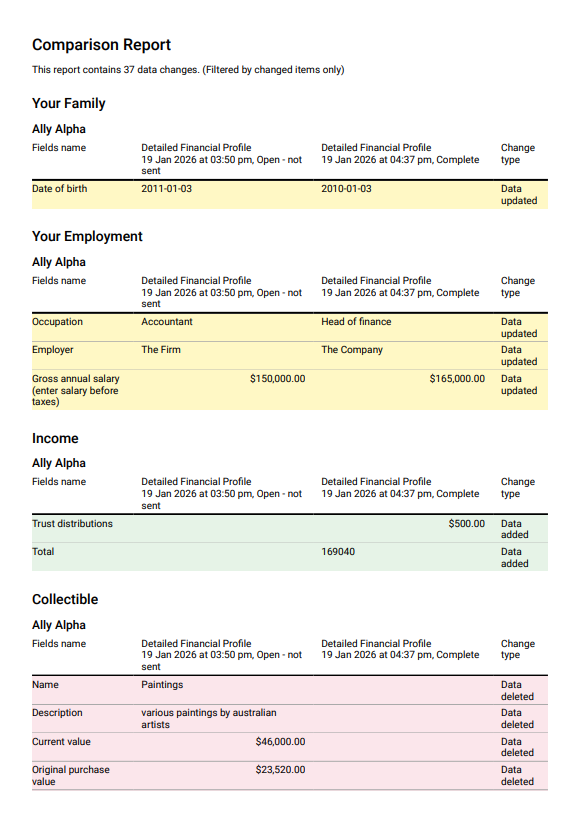
Fields highlighted in yellow indicate changes
Fields highlighted in green indicate additions
Fields highlighted in red indicate deletions